Core Concepts
Events & ticketing#
A ticketed event is still a Campaign underneath. Tickets are line items, seats are reserved before payment, and the same staging-and-reconcile pipeline finalizes the purchase.
What donors see#
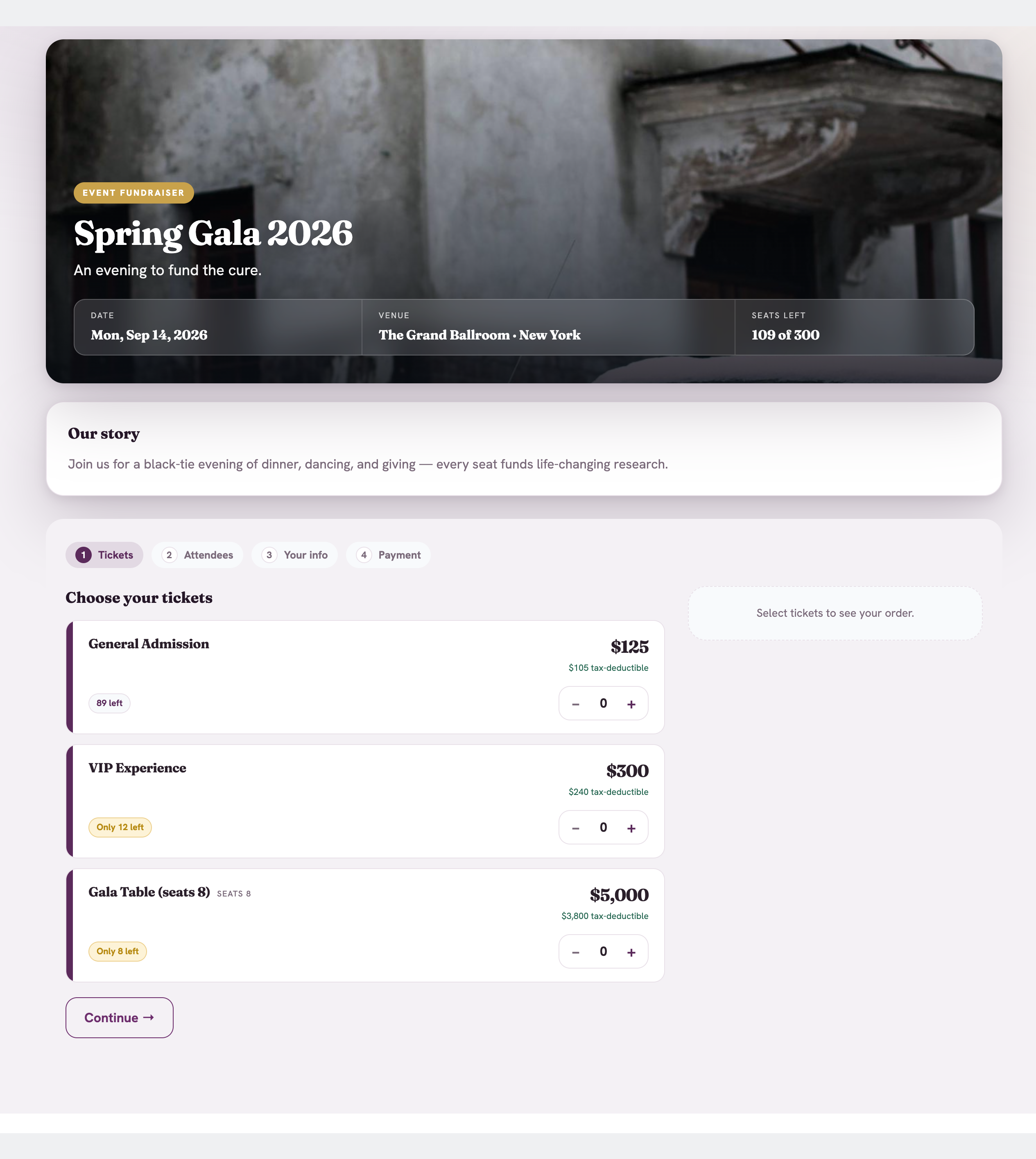
**What it shows.** The top of a live public event page — a banner carrying the date, venue and seats left ("300 of 300 seats left"), and the ticket tiers with their prices and a remaining-seats badge on each. Below this sit the story, documents, updates and FAQ, then the stepped checkout described below.
The ticket page is themed by the same Campaign_Design__c record as a donation page, and it is the
same two-column page: checkout in one column, the event's story and its documents/updates/FAQ well
in the other. What the design record varies is the proportion between them — see
The column ratio. An event and a donation appeal sharing one design therefore
share column proportion, hero treatment, type pairing, and theme tokens.
How the checkout is paced#
Buying a seat is three steps, and the buyer only ever sees the ones that have something on them.
- Tickets — pick the tiers and quantities, add an optional gift on top, and give the name and email the tickets should go to. Contact details sit on this step, not a later one: they are the only thing the purchase strictly needs, and asking for them first means an abandoned checkout still leaves you someone to follow up with.
- Who's coming — a card per seat, grouped under the tier that bought it. One card is open at a time and the rest collapse to a row showing the name entered so far, so a table of eight is eight short rows rather than eight full forms. Seat 1 is the buyer, pre-filled and locked. Any seat can copy its details from a seat already named. Guest emails are optional — every ticket is deliverable to the buyer regardless. Custom questions, if the event has any, are answered here.
- Payment — the card field and the total.
Step 2 disappears when it would be a formality. With a single seat and no custom questions the step's only content would be the buyer's own name, already filled in and locked, so it is removed rather than shown empty — and because the step numbers are positional, Payment becomes step 2.
"I'll name them later" takes the whole guest list off the buyer's hands. The seats are still held and the tickets still issue; the names can be filled in afterwards. Use it when someone is buying a table before they know who is sitting at it. If the buyer sends a second list before the first has been applied, the later list wins: the earlier one is declined with the message "These names were replaced by a later list you sent for this order", so two lists never overwrite each other seat by seat.
One order holds at most 50 tickets, and attendee names and e-mail addresses are capped at 80 characters. The form enforces both as the buyer types, and the server refuses an order that breaks either, so the limits hold for a request that did not come from the form.
A completed step turns clickable, so a buyer can go back and change an answer without losing the rest of the order. Anything that blocks the next step is reported inline, next to the button that refused to advance — and when a missing guest name is the reason, that seat's card opens and scrolls into view so there is nothing to hunt for.
What a tier can say for itself#
A tier name alone rarely answers the buyer's actual question, which is what do I get for this?
Two fields on Event_Ticket_Type__c cover that, and both are edited in the same place you set the
tier's price — the Fundraisers console's Tickets step when you build the event, and the
record's Tickets section afterwards.
Description (Description__c, 255 characters) is a line or two of what the tier includes —
"Two premium seats, sparkling reception, and your names in the programme." It renders directly
under the tier name on the public page. Leave it blank and nothing renders; a tier whose name says
it all does not need it. It is plain text, not rich text, deliberately: the value is shown to
unauthenticated visitors, so it can never carry markup. If you type the perks on separate lines
they come back on separate lines.
Highlight (Highlight_Label__c, 40 characters) puts a badge on one tier to steer buyers
toward it. Switch on Highlight this ticket and the editor seeds "Most popular", which you can
replace with anything that fits the event — "Best value", "Table of 10", "Sells out first". The
label is the switch: clear the text and the tier stops being highlighted, so there is no separate
checkbox to keep in step with it.
Highlighting is deliberately limited to one tier per event — badging one tier clears the badge on the others, whichever editor you used. Three tiers all reading "Most popular" recommend nothing. The rule is enforced when you save, so it holds even if two people are editing the same event.
Two things a highlight will not do. It never overrides the buyer's own choice: once they select a tier, the selected styling wins. And a sold-out tier is never highlighted, because advertising something unbuyable only tells the buyer what they missed.
Loading tiers through the API
One-highlight-per-event is an editing convention, not a validation rule. A Data Loader or API write bypasses it, and the public page renders exactly what it is given — so if you badge three tiers by import, three badges appear.
What the buyer sees when the seats run out#
Two caps can bind, and the public page keeps them straight so the buyer is never quoted a number the checkout will refuse to honour.
A tier never advertises more seats than the event has left. On an Event Total (or Both) event, each tier's remaining-stock chip is clamped to whatever is smaller — the tier's own remaining capacity, or the event's. An event with 11 seats left shows "Only 11 left" on every open tier, even on a tier holding 88 of its own, because those 88 are not sellable. Without the clamp the page tells three true statements that add up to a false impression.
The section hint speaks for the event. Above the tier list, Choose your tickets carries a short hint: how many tickets you have selected once you start, and before that, when the event itself is close to full, how many the event has left in total. The per-tier chips cannot say this — each one only knows its own stock.
A closed event says so instead of showing a dead price list. When the event has reached capacity, or when every tier is closed (each one sold out, or its sale window over), the tier list is replaced by a single quiet notice — "Every seat for this event has been claimed. Registration is closed", or "Ticket sales for this event have closed." The page previously rendered the full price list with every stepper disabled, which reads as a broken page rather than a closed one. The rest of the page — story, updates, contact details — still renders, so a visitor who arrives late still learns what the event is.
Event Capacity must clear what the tiers have already sold
Event_Capacity__c is checked against Tickets_Sold__c, a roll-up of every tier's
Quantity_Sold__c. Setting the event capacity below the number already sold makes the event
read as full and closes registration immediately, even though each tier still reports stock of
its own. If you lower the cap mid-sale, check the campaign's Tickets Sold first.
Same pipeline, different payload#
Event ticket purchases don't get a separate payment system — they go through the identical
Donation_Staging__c → Stripe → reconcile flow described in
Donations & payments. What's different is the Purchase_Type__c
discriminator on the staging record: a value of Event_Ticket routes finalization to
EventPurchaseService instead of the plain donation finalizer, which creates the Opportunity
plus OpportunityLineItem rows (one per ticket tier purchased) and an Event_Attendee__c
record per seat.
After the purchase — the ticket deck#
A completed order lands on the same routed confirmation page as a donation
(/thank-you — see After the gift),
with the seats stacked underneath the receipt.
Someone who bought five seats does not get five full cards. They see the first ticket and a
count — See all 5 tickets expands the stack. Each seat shows its attendee name, tier and its own
short ticket reference, drawn as a scannable code on the card. A seat nobody was named for reads
Unassigned seat rather than showing a blank line.
The code encodes the ticket reference and nothing else — not the order link, not the buyer's details — so a ticket forwarded to a guest hands over exactly one seat and no access to the order. A refunded or voided seat carries no code at all and is marked not valid for entry, so a screenshot taken before the refund can't be presented at the door.
There is no door-scanning app yet
The codes are readable by any standard scanner, and the reference they contain matches the
Event_Attendee__c record — but the package ships no check-in endpoint or scanning screen in
this release. Today the code is a fast way for a volunteer to look a guest up, not an automated
turnstile.
Working the door#
Two surfaces mark people in, and both write the same field on the same record — there is no second check-in path to keep in step.
The board is for a queue. It lives on the Fundraisers console and, on a ticketed event, on the campaign's own record page: search a name, mark them Checked In or No Show, next guest. See Working from the campaign's record page.
The seat record is for one person. Opening a single Event Attendee record answers what the board can't: which tier they bought, what the order actually paid, and who else came in on the same order — useful when a family of four arrives and only one of them is in front of you. The same check-in control is on it.
Checking a seat in edits that seat's record, so whoever flips it must be able to edit it under your org's sharing. Seats are private and owned by whoever the purchase ran as, never by the door staff, so Fundraising User and Fundraising Admin carry Modify All on Event Attendee: anyone holding either set can check in any seat. If you give the check-in controller to a permission set of your own without Modify All, its users can check in only the seats your sharing lets them edit, and get "You do not have permission to check in this attendee." on the rest. Fundraising Read-Only cannot check anyone in.
A refunded seat is cancelled, not deleted, and its control is locked rather than hidden. Whoever is holding that ticket at the door still needs to see the seat — and to see that it's void.
Seats are reserved before the charge completes#
EventRegistrationController.createTicketIntent increments Quantity_Sold__c on the ticket
tier — under a row lock (FOR UPDATE) so two donors buying the last seat can't both succeed —
before the Stripe PaymentIntent is confirmed. This trades a small risk (a seat held by an
abandoned checkout) for the alternative, which is worse: two people paying for the same last
seat because reservation happened only after payment.
That risk is bounded by a short staging expiry: an event's Donation_Staging__c row expires
after 30 minutes (compared to 72 hours for an ordinary donation), and an expired or
canceled staging row releases its held seats back to inventory via releaseReservation.
Refunds and seats#
| Refund type | Effect on the seat |
|---|---|
| Full refund | Seat is released back to inventory (EventPurchaseService.releaseForOpportunity) |
| Partial refund | Seat is not released — a partial refund is assumed to be a price adjustment, not a cancellation |
Tax-deductible amount#
For events with a quid-pro-quo component (a $150 ticket that includes a $60 meal, for
example), the deductible portion is calculated on Event_Deductible_Amount__c, a formula
field on the Opportunity — so receipts and reports reflect only the tax-deductible portion of
the ticket price, not the full purchase amount.
Which of the two per-tier fields feeds that formula is an org-wide choice — Settings → General → Events → Deductible Amount Mode. In Fair Market Value mode (the default) each tier states the value of what the buyer receives, and a blank means they received nothing of value, so the whole gift is deductible. In Percentage mode each tier states the deductible share of its own price instead, and the two fields do not substitute for one another: a Percentage-mode org that leaves a tier's percentage blank has not configured that tier, so the purchase records 0% deductible and logs a warning rather than reading the fair-market field a percentage org never fills. The tier editor refuses to save a tier with no percentage while the org is in Percentage mode, so the only way to reach that state is to switch modes after the tier already existed.
If the campaign offers Let donors cover processing fees, the checkout also asks the buyer to add the processing fee on top. That amount is grossed up from the tickets and any add-on gift, recorded as its own order line, and treated as fully deductible — the buyer received nothing of value for it. So it raises the charge and the deductible remainder by the same figure and leaves the goods-and-services value untouched. See when the donor covers the processing fee.
Every receipt surface honours that split, not just the emailed one: a ticket buyer who opens their receipt in the donor portal, and an admin who prints one from the Opportunity, both see the gift total, the goods-and-services value, and the deductible remainder stated separately. The one case with no deductible figure is a partially refunded ticket order — see what a receipt claims is deductible for why the package declines to guess there.
Related reference#
-
Set up a ticketed event
Build one from the Fundraisers console — venue, capacity, ticket tiers.
-
Campaigns
An event starts the same way any campaign does.
-
Donations & payments
The underlying staging-and-reconcile pipeline events reuse.