Guides
Publish a donor portal page#
Donors don't create an account or log in. They type their email, receive a short sign-in code, and type that — which opens a session that lives in the browser tab and nowhere else.
This guide covers the admin side. For a walkthrough of what a donor sees and every self-service action they can take, with screenshots, see The donor portal.
Watch it first#
Seven strings a donor reads word for word, set in one panel. Nothing here changes what the portal does — only what it says while doing it.
Why a code, not a login#
Requiring donors to create a portal login is friction most never clear — a login they'll create once and forget. The donor portal asks for two things instead: an email address the donor knows, and an 8-character code delivered to the mailbox that address belongs to.
Sign-in is two screens. The donor enters their email; Salesforce sends a code to it; the
donor types the code on the next screen. A correct code is destroyed on use and exchanged for
a session token, which the page keeps in the browser tab's own storage. Nothing is ever
carried in the URL, so there is no address-bar token to appear in browser history, in a
Referer header, or in a proxy or CDN log — and no link anyone can forward, deliberately or
by accident, that would hand over a donor's dashboard.
Four things bound a session. Three of them are durations you set in Settings; the fourth is a deliberate act by the donor or your staff:
| Bound | What it does |
|---|---|
| Code expiry | The emailed code is short-lived — 15 minutes by default. Five wrong attempts lock it, and the donor requests a new one |
| Idle timeout | A session that goes untouched for 30 minutes (default) ends itself, so an abandoned tab stops working |
| Session cap | An absolute ceiling — 4 hours by default — regardless of how active the donor is |
| Sign Out / staff revoke | The donor ends the session from the portal. Staff can end one by setting that donor's Portal Access Token record to Revoked — but the package ships no tab or related list for that object, so an admin has to open the record directly |
Record Ids are never used to address these pages: the session identifies the donor, and every portal action is scoped to the donor that session belongs to.
Before you start#
Confirm you have an Experience Cloud site provisioned, including a Donor Dashboard page at the
donor URL (Professional edition orgs and orgs without a site can't publish this) — see
Set up your Experience Cloud site if you
haven't built it yet. The Fundraising_GuestDonor permission set must be assigned to the
site's guest user profile.
1. Enable the portal#
Settings → Experience Cloud → Donor Portal. Turn on the panels you want donors to see —
giving summary, recurring gift management, giving history, saved payment methods. Each is an
independent "Show panel" toggle — turn it on to show that panel to donors, off to hide it.
(Under the hood these are stored as inverted Donor_Portal_Hide_*__c fields, but the panel
presents them as normal, positive-framed toggles.)
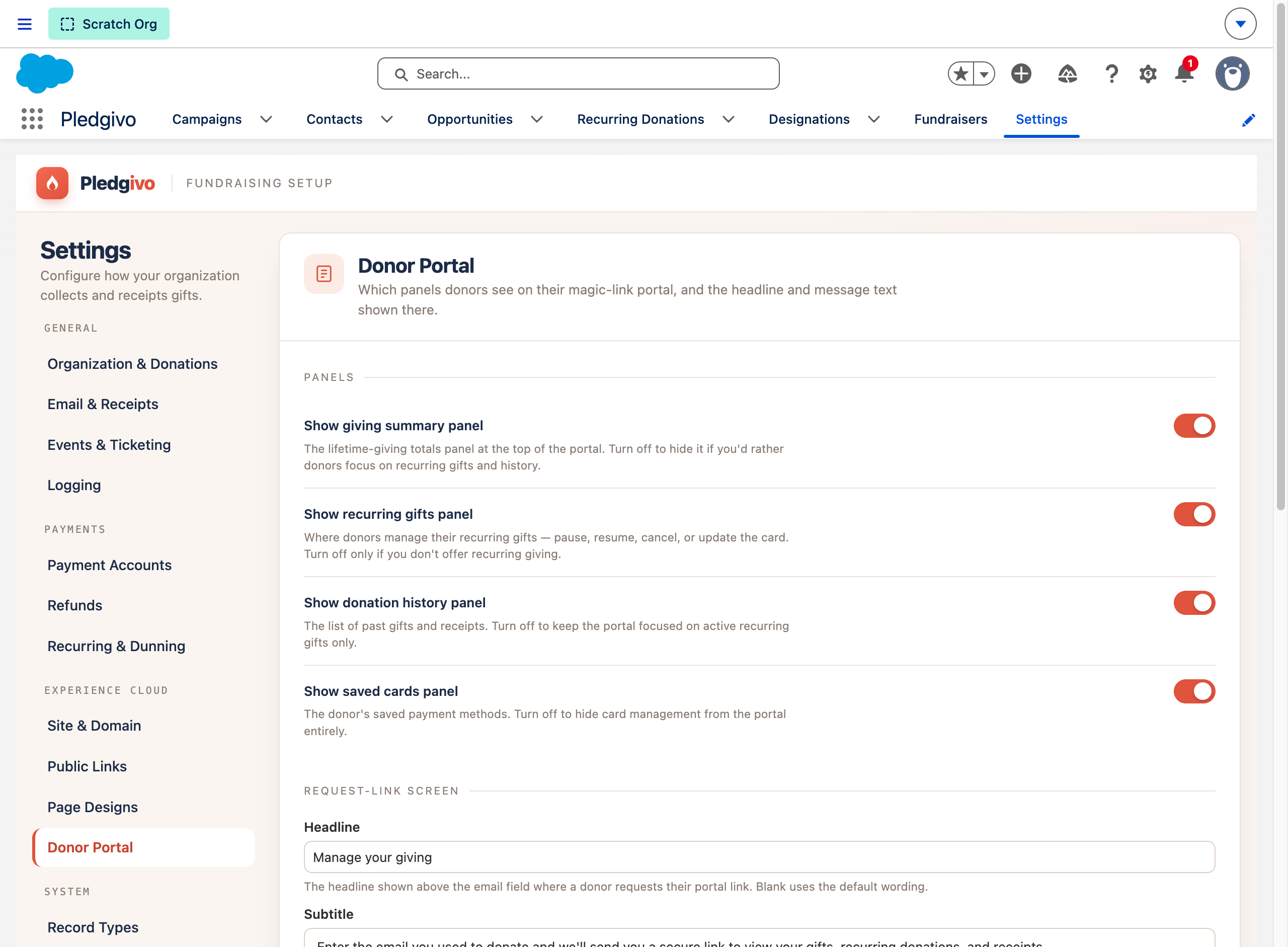
**What it shows.** The Donor Portal panel's Panels section — toggles for the giving summary, recurring gifts, donation history, and saved cards sections, each with helper text — and the start of the sign-in screen copy fields below.
2. Customize the two sign-in screens#
The same panel controls the copy on both steps of sign-in: the request screen, where a donor types the email they gave when they donated, and the confirmation screen, whose title and message caption the box the donor types the emailed code into. Both default to reasonable generic copy; personalize them with your org's name and tone.
Keep the confirmation message conditional
The confirmation screen renders identically whether or not the address matched a donor record — that identical response is what stops the form being a way to test who supports you, and nothing you write here can change it. What flat copy ("check your inbox — your code is on its way") does do is state something untrue to a visitor you have no record of, and leave them waiting for an email that never arrives. Keep the hedge the default copy uses: if a matching donor record exists — it is the one wording that is accurate for both outcomes.
For the same reason, don't quote the code's lifetime as a fixed number here — the screen reads it from your Portal code expiry setting, so a number typed into this field goes stale the moment someone changes that setting.
3. Set empty-state messaging#
If a donor has no recurring gifts or no giving history yet, the portal shows an empty-state message rather than a blank panel — customize this too, so a first-time donor doesn't land on something that reads like an error.
4. Publish the Experience Cloud site#
Publishing the underlying Experience Cloud site is a separate step from the Settings toggles above — Setup → Digital Experiences → your site → Publish. Settings changes take effect immediately for anyone signed in; site-level changes (a new LWC version, for example) require a publish to go live for guest users.
Publish, then hard-reload before verifying
A deploy alone is not enough for guest-visible changes to take effect — the Experience Cloud site must be explicitly published. After publishing, hard-reload the page before checking your work; a cached bundle can otherwise make a successful publish look like it didn't take.
Where donors find it#
Donors are offered the portal in four places, and every one of them is the same address — your Experience Site URL plus the portal path from the Settings tab:
- the Manage your giving row in the contact band at the foot of every public campaign, event and gallery page;
- the thank-you page, under the receipt, once the receipt has been sent;
- the receipt and the other donor emails, in a "Manage your giving" block — the block is on the receipt (DonationReceipt), the dunning notice (DunningEmail), the failed-payment alert (FailedPaymentAlert), the re-authorization request (ReAuthRequired), the recurring-donation confirmation (RecurringDonationConfirmation) and the refund notification (RefundNotification);
- the link a staff member sends from a donor's record.
You do not have to add a link anywhere yourself. The email button is printed on every one of those templates regardless of setup order, so if the Experience Site URL is not yet set the button still renders — it just has nowhere to send the donor until you set it.
What donors can do#
| Panel | Capability |
|---|---|
| Giving summary | Their own name and email, the month they first gave, lifetime total, this-year total, and lifetime gift count |
| Where it went | A breakdown of their own giving by fund, net of refunds — the four largest funds by name, everything else rolled into "Other funds". Shown only once a donor has given to more than one fund, and only where gifts were split across funds at all |
| Recurring gifts | View active recurring gifts; change the amount; change which fund the gift supports (limited to the funds the campaign offers); skip the next payment; pause or resume; retry a failed charge immediately or reinstate a lapsed gift; switch the saved card a gift charges, or add a new card (via a Stripe SetupIntent); cancel |
| Saved cards | View the cards already on file, and remove one they no longer want offered. Removal is refused while a live recurring gift still charges that card — active, paused, or one whose last payment failed — so the donor moves the gift to another card first. A removed card is hidden, not deleted, so refunds on gifts already paid with it stay traceable; giving with it again puts it back |
| Giving history | View and download receipts for past gifts, grouped by year with a per-year gift count and total |
| Annual giving statement | Pick a tax year and print a single statement covering every receiptable gift in it — the year-end document donors otherwise phone in for. Each year offered shows its gift count and total before the donor commits to a download |
| Event tickets | View and print tickets for events they've registered for (/tickets?token=…) |
The fund breakdown nets out refunds, and a refund follows the split
A refunded gift does not simply vanish from the breakdown — the refund is apportioned across that gift's funds in the same proportion the original gift was, so a $400 gift split 3:1 between two funds and later refunded $200 reduces those funds by $150 and $50. The percentages a donor sees are rounded once, on the server, so the chart and its legend can never disagree.
The statement is on demand, not a year-end mailing
Nothing is sent in January. A donor produces their own statement whenever they want one, and staff can produce the same document from a Contact or Account record page when a donor asks over the phone. The two paths render through the same code, so a donor who prints their own statement and one your team emails them are the same document — which matters if the two ever end up side by side in front of a tax authority. Only years the donor actually gave in are offered, so an empty statement is never produced.
Related#
-
The donor portal
What donors see and can change, screen by screen.
-
Recurring giving
What donors are changing when they switch a saved card.
-
Donors & accounts
How a donor's identity resolves regardless of account model.
-
Settings & integrations
Where donor-portal configuration sits in the settings model.